Screen Recorder for Mac
Record your whole screen or a single window, with your microphone, the sound your Mac plays and, on a screen recording, your camera in a bubble. The video uploads while you record, and its share link is copied when you stop. The app is free to download and saves to your Vertov library.
Version 0.4.0, 1.5 MB. macOS 15 or later. Signed with an Apple Developer ID and notarized by Apple.
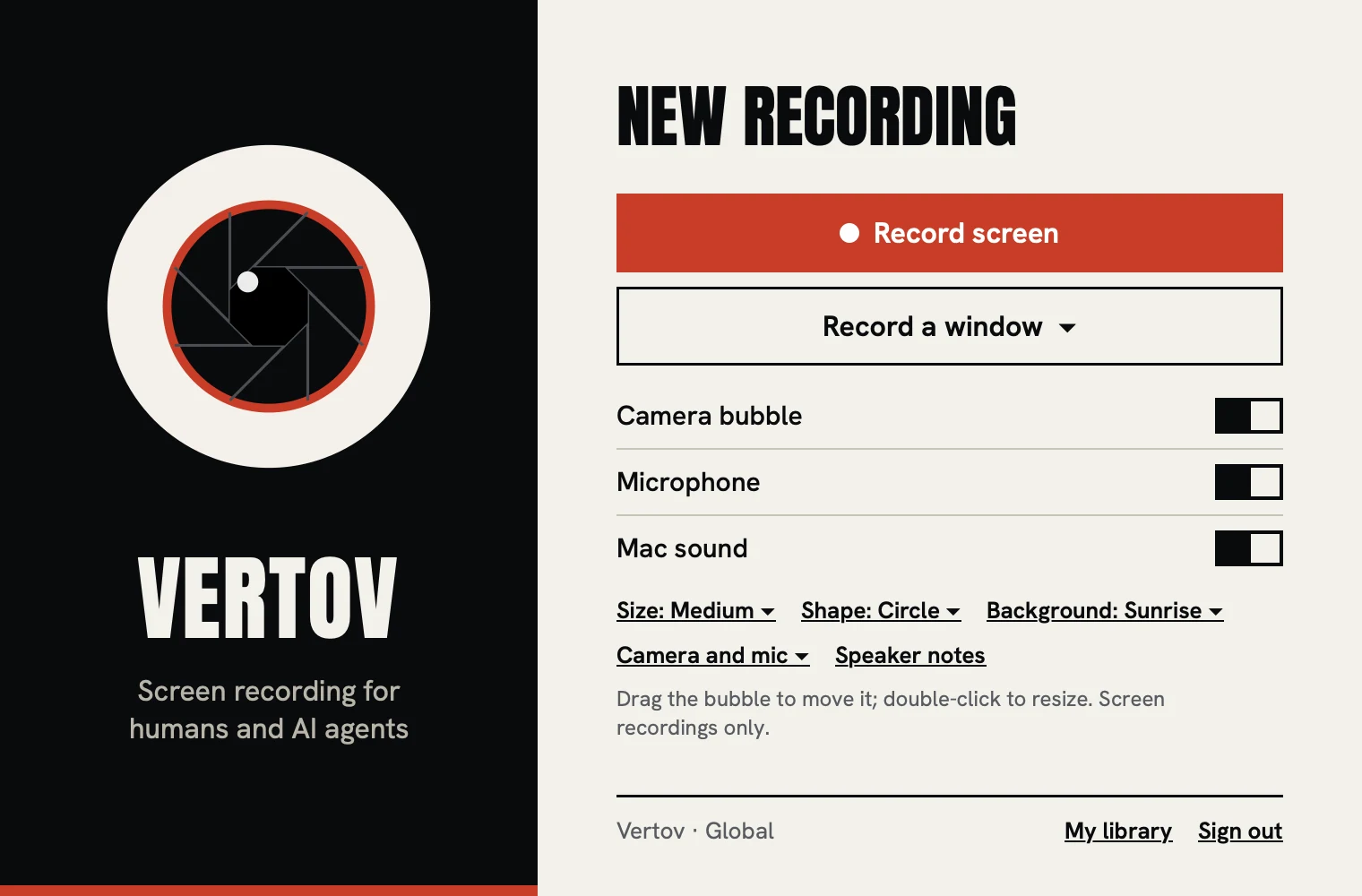
What the Mac app does
Screen or window
Record any connected display, chosen by clicking on it, or one app’s window.
Camera bubble
Show yourself in a circle, rounded or portrait bubble in three sizes and drag it where you want it. It is recorded as part of the screen, so it cannot be moved afterwards, and it is not part of a single-window recording.
Camera backgrounds
Blur your room, use one of four colour backgrounds or your own picture. The cutout happens on your Mac.
Draw and point
On a screen recording, draw in five colours with thin or thick lines that fade or stay, and highlight the cursor.
Speaker notes
Keep a script on screen while you record. The notes are not part of the video.
Microphone and Mac sound
Each has its own switch, so a demo can keep the sound the app makes.
Choose camera and microphone
Pick which connected camera and microphone to use.
Starts from any app
Option, Shift, Command and R starts recording the main screen and stops it. The menu bar icon does the same.
Pause, restart or discard
A control bar that is not recorded lets you pause, start the take over or throw it away.
Uploads while you record
A copy stays on your Mac until the server confirms it has the whole video, and an interrupted upload is tried again.
Edit on the web
Open the video in your library to cut by transcript, caption it and set who can watch.
How to record your Mac screen with Vertov
Step 1
Download and install
Open the downloaded file and drag Vertov to Applications. Then open it from there.
Step 2
Sign in
Press Sign in. The usual sign-in page opens, with the choice of the global or European Union service. Allow the app to connect.
Step 3
Allow screen recording
macOS asks before any app can record the screen or use the microphone. Turn Vertov on in System Settings, Privacy & Security, then open the app again.
Step 4
Record and send the link
Choose Record screen or Record a window. With more than one display, click the screen you mean. Recording starts after a three second countdown. When you stop, the share link is on your clipboard and the video is in your library.
Rather not install anything? macOS has its own recorder: see how to screen record on a Mac. You can also use the browser recorder or the Chrome extension, then share the video by link.
What it does not do yet
- A camera bubble or drawing on single-window recordings
- Camera-only video and recording a selected area
- Letting viewers watch while you record
- Automatic updates: download a newer version from this page
- Languages other than English in the app
- A Windows, iPhone or Android app
Questions
- Is the Vertov Mac screen recorder free?
- Yes. The app is free to download, and the Free plan holds 180 minutes of library video with videos up to 15 minutes. Paid plans are priced by hours stored per workspace; see the pricing page.
- Can I record my camera and screen together?
- Yes. Turn on Camera bubble and record a screen. The bubble is part of the picture, so place it before or while you record.
- Does it record the sound my Mac plays?
- Yes. Turn Mac sound on, and Microphone too if you are narrating. Record a few seconds and play them back before a long take.
- Which Macs does it run on?
- It needs macOS 15 or later. The download contains builds for Apple silicon and Intel; we have not yet tested it on an Intel Mac.
- Do I need an account?
- Yes. Recordings go to a Vertov library, so the app asks you to sign in once. You can disconnect it from Settings, under Agents.
- How long can I record?
- Free videos can be up to 15 minutes. Recordings over about six hours cannot finish.
- How do I remove it?
- Quit Vertov and drag it from Applications to the Trash. Videos you already recorded stay in your library until you delete them.
Version 0.4.0, 1.5 MB. macOS 15 or later.
Download for Mac