Webcam recorder: record yourself and your screen
Vertov records your screen with your webcam in a bubble and gives you a share link when you stop. The camera is saved as its own track, so you choose the layout, bubble size and shape after you record.
Tested on 4 November 2026 in Chrome on a Mac with a simulated camera and screen: a recording with the camera on uploaded, opened on its video page with the bubble over the screen, and offered the layout options described below. It has not been tested with a real webcam, so how any particular camera looks or performs is not covered here.
What you can record
In the web recorder you choose Screen recording, then pick what to share in your browser's own picker. Turn Camera on and your webcam is recorded alongside it.
| You share | Camera bubble while you record | Notes |
|---|---|---|
| A browser tab | Floats on top in its own small window (Chrome 116 or newer) | The bubble is recorded separately, so it is not burned into the tab. |
| A window | Floats on top in its own small window (Chrome 116 or newer) | Same behaviour as a tab. |
| Your whole screen | Not shown; a slim control bar appears instead | A floating bubble would otherwise be captured into the screen video. Your camera is still recorded and appears in the finished video. |
If the browser does not support the floating window, recording still works but you will not see the bubble while you record.
How recording with a webcam works
- Press Start recording free. If you are not signed in, Vertov creates a guest account in your browser and opens the recorder.
- Choose Screen recording and turn Camera on. Pick your camera from the dropdown if you have more than one. Pick a microphone and watch the level bars move when you speak.
- Press Choose a screen and pick a tab, window or your whole screen in the browser's dialog.
- Press Start recording. A 3-second countdown runs; click it to skip. Pause and resume with the pause button. Space also works while the floating window has focus.
- Stop. Because parts upload while you record, there is little left to send. The link is copied as you stop, and the video page opens when the last part has arrived. The transcript follows in the background.
Choose the layout after you record
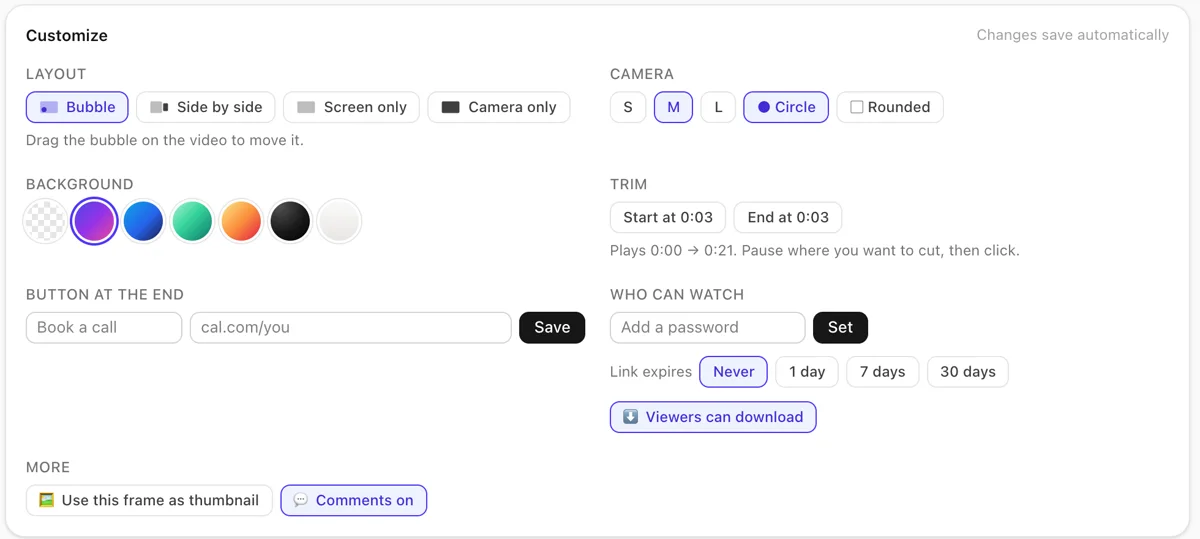
Because the camera is a separate track, the look of the video is set in the Customize panel, not locked in at record time.
- Layout: bubble, side by side or screen only. Recordings that include a camera also offer a camera-only layout.
- In the bubble layout: camera size small, medium or large as a share of the video width, and circle or rounded shape. Drag the bubble on the video to move it to a corner.
- Background behind the video: none or one of six gradients.
Camera backgrounds
Before you record you can blur the background or put yourself on one of four gradients, computed on your device. This needs a Chromium-based browser. The effect is recorded into the camera track, so unlike the layout it cannot be changed afterwards. How clean the edge looks depends on your camera and lighting, and we have not tested it across cameras.
Microphone options
- Pick any microphone the browser lists, or the default. A small level meter shows whether it hears you.
- Echo cancellation, noise suppression and automatic gain are on and cannot be changed.
- There is no mute button while recording. Turn the microphone off before you start, or use pause.
- If you share a tab, the browser's picker may offer a Share audio checkbox. Whether system or tab audio is available depends on your browser and operating system.
Browser requirements
- Screen capture uses your browser's built-in screen sharing, so desktop browsers that offer it can start a recording. We have only tested Chrome on a Mac, with a simulated screen and camera.
- The floating camera bubble and camera backgrounds need a Chromium-based browser; the bubble needs Chrome 116 or newer.
- Phone browsers have not been tested, and Vertov has no native desktop or mobile app.
Fix camera and microphone permission problems
- Click the camera or lock icon at the left of the address bar and set Camera and Microphone to Allow, then reload the page.
- Check your operating system. On macOS open System Settings, Privacy & Security, then Camera and Microphone, and switch your browser on. On Windows open Settings, Privacy & security, then Camera and Microphone.
- Close other apps that may be using the camera, such as a video-call app. Many cameras can only be opened by one program at a time.
- If you dismiss the screen-sharing dialog, nothing happens. Press Choose a screen again.
- If Vertov says it could not open the camera, reconnect it, pick it again in the dropdown, or try another browser profile.
Limits
- The web recorder has no quality setting. It asks the browser for up to 1920 by 1080 at 30 frames per second for the screen and 1280 by 720 at 30 for the camera, and the browser decides what it delivers. 4K, square and vertical recording are in the Chrome extension, which is on the Chrome Web Store and was not re-tested for this page.
- A recording longer than six hours cannot be completed.
- Free plan available; paid plans are priced by hours stored per workspace.
- The guest account behind Start recording is tied to your browser's cookies. Clearing site data removes your access to it.
Questions
- Can I record my screen and webcam at the same time?
- Yes. Choose Screen recording, turn Camera on, and the camera is saved as its own track alongside the screen. You choose the layout after you stop.
- Do I need to install anything?
- The web recorder runs in a desktop browser with no install. The Chrome extension is optional and is on the Chrome Web Store.
- Do I need an account?
- Pressing Start recording free creates a guest account in your browser and opens the recorder, so there is no signup form on the normal path. If a guest account cannot be created, for example when many new guests arrive from one network in an hour, you are sent to the sign-in page. Clearing site data removes access to a guest account. People who watch your video do not need an account unless you limit it to workspace members.
- Is it free?
- There is a Free plan with 5 hours of library video. Paid plans start at $9 a month and are listed on the pricing page.
- Why can't the recorder see my camera?
- Usually the browser or operating system is blocking access, or another app has the camera open. Allow Camera for the site in the address bar, check your system privacy settings, and close other apps that use the camera.
- Does it work on a phone?
- Not tested. Vertov has no mobile app, and screen capture is not available in most phone browsers.
Record your first video.
No download needed and no card.