How to make a product demo video
A product demo video shows your software working, usually as a screen recording with your voice over it. Pick the one task your viewer cares about, record it in one pass, tidy it by editing the transcript, and share it as a link they can watch without an account. This page covers formats, a Vertov workflow, and when a live demo is better.
Steps describe Vertov as built. The editing, annotation and sharing steps follow the product code; we have not recorded a full demo through them for this page. The example script uses a made-up product and sample data, not a customer story, and we make no claims about results.
What a product demo video is
It is a recorded walkthrough of a product doing a real job: creating something, changing a setting, finding an answer. It is not an advert and not a tutorial for every feature. The viewer should finish knowing what the product does for them and what to do next.
This page is about recorded demos, which are videos of your screen. Interactive click-through demo builders are a different kind of tool, and Vertov is not one.
When people record a demo
- Founders showing what they have built to people who cannot attend a call.
- Product managers announcing a feature to the team or to customers.
- Sales engineers sending a tailored walkthrough after a discovery call.
- Customer success teams showing a customer how to use a feature they have not adopted.
- Support teams answering a how-do-I question or reproducing a problem.
- Developers demonstrating an API, a command line tool or a pull request.
Eight demo formats
Lengths below are our suggestions, not benchmarks. The rule underneath all of them: one task per video.
| Format | Use it when | What to show | Suggested length |
|---|---|---|---|
| Product overview | Someone is new to the product | The main screen, the one job it does, the next step | About a minute |
| Feature announcement | You shipped something | The problem, the feature working once, where to find it | One to two minutes |
| Setup walkthrough | A new customer needs to get started | The first-run steps in order, with the settings that trip people up | Two to five minutes |
| Tailored prospect demo | You know what the prospect cares about | Their use case, using sample data that looks like theirs | Three to five minutes |
| Post-call follow-up | A call raised a specific question | Only the part that answers it | One to three minutes |
| Support answer | A customer asked how to do something | The exact clicks, slowly, with the screen unchanged between steps | Under two minutes |
| Bug reproduction | You need engineering to see the problem | The steps, the expected result, the actual result | Under two minutes |
| Developer demo | You are showing an API, a CLI or a change | The request, the response, then the same thing in code | Two to five minutes |
Recorded demo or live demo
| Aspect | Recorded demo | Live demo |
|---|---|---|
| Timing | The viewer watches when it suits them | Everyone needs the same time slot |
| Questions | Handled afterwards, in comments or a reply | Answered on the spot |
| Tailoring | Fixed once recorded; record another version to change it | Adjusts to the person in the room |
| Repeatability | Same demo every time, shareable as a link | Varies with the presenter and the day |
| Upkeep | Goes out of date when the product changes | Always shows the current product |
Use a live demo when the conversation matters more than the product, and a recorded one when the viewer needs to see something once, on their own time.
Record a demo in Vertov
- Prepare. Use a test account with sample data, close notifications, set your browser zoom so text is readable, and write three or four bullet points for what you will say.
- Press Start recording free, choose Screen recording, and pick the tab or window with the product. Turn the camera on if you want your face in a bubble; leave it off if you do not.
- Record the task once, talking through why you are clicking each thing. Pause if you need to look something up.
- Stop. Because parts upload while you record, the link is copied as you stop and the video page opens when the last part has arrived. The transcript follows in the background.
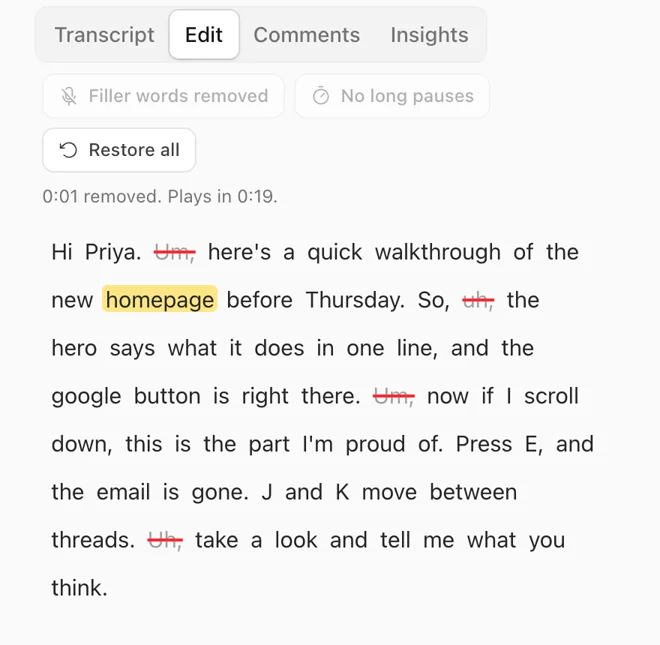
- Open Edit, which appears once the recording has a transcript. Select words and cut them; you can restore them later. One button removes filler words such as um and uh, and another shortens long pauses. Trim the start and end in Customize.
- Add annotations where it helps: text, boxes and arrows that point at the right control, or a clickable link. Add a button at the end of the video that points to your next step, such as a booking link.
- Set who can watch: anyone with the link, a password, an expiry date or workspace-only. Share the link, or embed the video on a page.
Camera layout, bubble size and background are chosen after recording in the Customize panel. See the screen recorder page for the camera options.
Record your first product demo.
Start recording freeAn example script, with sample data
Fictional product: Acme Books, an invoicing app, shown with made-up customers. The aim of the video: show a new user how to send their first invoice.
- Open with the job, in one sentence: "This video shows how to send your first invoice."
- Show the Invoices screen and click New invoice.
- Pick a customer, add one line item, and say what the tax field does before you leave it alone.
- Click Send and show the confirmation.
- Show where the paid status will appear later, and stop. Do not demo the reports page in this video.
How viewers watch
Viewers open the link and watch in the browser. They do not need an account, and they can react and comment with just a name unless you restrict access. Per-video insights show opens counted once per browser and the furthest point each browser reached. Skipping ahead counts, so it is not watch time. A click on the end-of-video button is a click, not a conversion.
Before you share it
- Is there one task, and does the title name it?
- Is every name, email and number on screen sample data?
- Can someone follow it with the sound off, using the captions?
- Does the video end by saying what to do next?
- Is the visibility setting what you meant?
What to know first
- Vertov is a newer product, and its plans and limits may change.
- Vertov has no tool that records your screen. An agent that already produces video can upload the file through the API, or give the MCP server a public link, and can then search and read transcripts. Separately, owners and admins can have an agent record a narrated how-to of their own web app, which they have verified they own, in a hosted browser (the record_tutorial tool); that is not a recording of your screen.
- There is no native app. Click-zoom capture and drawing on the page are features of the Chrome extension, which is on the Chrome Web Store; we have not re-tested them for this page.
Rather record from a toolbar button? Use the Vertov Chrome extension.
Questions
- What is a demo video?
- A short video that shows a product being used to do a real job, usually a screen recording with narration.
- How do I create a product demo video?
- Choose one task, record your screen while you do it, remove mistakes by editing the transcript, add arrows or text where needed, and share the link. Vertov does all of those steps in the browser.
- How long should a demo video be?
- There is no standard. Our guideline is one task per video, as short as it takes to show that task. Split long processes into several videos.
- Is a recorded demo better than a live demo?
- It depends on the audience. A recorded demo suits viewers who watch on their own time. A live demo suits conversations where questions matter more than the product.
- Can Vertov make interactive demos?
- No. Vertov records video. It does not build click-through product tours.
- Can an AI agent record my demo?
- Vertov has no tool that records your screen. An agent that already produces video can upload the file through the API, or give the MCP server a public link, and can then search and read transcripts. Separately, owners and admins can have an agent record a narrated how-to of their own web app, which they have verified they own, in a hosted browser (the record_tutorial tool); that is not a recording of your screen.
Record your first video.
No download needed and no card.