Screen Recorder for Chrome
Vertov is a Chrome extension that records a tab, a window or your whole screen, with your camera in a bubble if you want it. Recording uploads while you talk, so you get a share link when you stop.
Version 0.4.1 on the Chrome Web Store. Chrome 116 or newer, on a computer. Free to install.
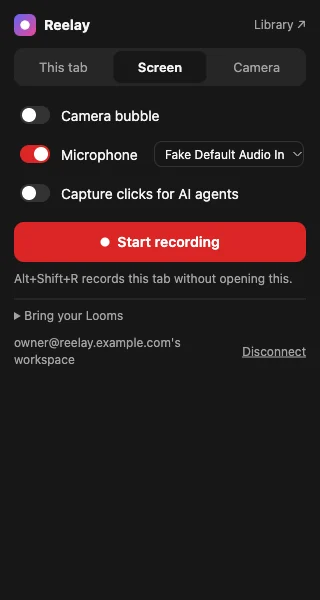
How the Chrome extension works
Step 1
Add it from the Chrome Web Store
Press Add to Chrome on the listing, then confirm. Chrome 116 or newer on a computer.
Step 2
Connect it once
Pin the extension from Chrome's puzzle-piece menu and click it. Press Connect, which opens Vertov so you can sign in and allow it. After that every recording lands in your library.
Step 3
Pick a mode and press record
Choose This tab, Screen or Camera. Turn the camera bubble and microphone on or off, pick a quality, and press start. Alt+Shift+R starts or stops recording the current tab.
Step 4
Stop and share
The video uploads while you record. When you stop, your share link opens on a video page you can send, edit by text or caption.
What the extension does
Each line says how we know. Tested means we ran it. Checked in source means the code and manifest do it. Documented means it is in the store listing or product notes but we have not run it in the installed extension.
- Checked in source
Record a tab, a window or the whole screen
The popup has This tab, Screen and Camera modes, and the manifest requests tab capture for tab recording.
- Documented
Camera bubble
A camera bubble you can drag and resize while you record. The web recorder's webcam layouts are tested separately; the extension's bubble has not been tested in a store install.
- Documented
Pen and cursor highlight
Draw on the page and highlight your cursor while you record a tab.
- Tested
Camera background
Blur or replace your camera background, on your device. A local demo with a real talking-head clip kept the person over the new background; hands and table edges were rough.
- Documented
720p, 1080p, 4K or a custom size
Standard, square and vertical sizes, plus custom dimensions.
- Checked in source
Uploads while you record
Parts upload as you go, so there is little left to send when you stop. Tested in the web recorder; the extension uses the same upload path.
- Documented
Live viewing and rewind
Viewers can watch while you are still recording and rewind to the start.
- Documented
Click capture for AI agents
Optional. Records what you click so an agent can follow your steps from the video's brief. The test in an installed extension is still open, so treat it as unproven.
- Documented
Bring your Looms over
Import your Looms, private ones included, using your own Loom sign-in in that browser, and old Loom links redirect to the copy.
In the web app, not the extension
- Editing by text, captions, translated captions, links and annotations
- Combining videos and exporting an MP4
- Your library, search, comments and sharing settings
- The web recorder at the start page, which records without installing anything
What people record with it
Bug reports and product walkthroughs
Record the tab where the bug happens, say what you clicked, and paste the link into the ticket.
Walkthrough videosQuick video messages
Answer a question with a short recording instead of a long thread.
Video messagesProduct demos
Record a demo with your camera in the corner and send a link, not an attachment.
Product demo videosTutorials the agent records
Describe a how-to in the side panel. The agent works out the steps in your signed-in tab, you check them, and it makes a narrated video.
AI tutorial video generatorTroubleshooting
- The Add to Chrome button does nothing on my phone
- Chrome extensions install on desktop Chrome only. On a phone, use the web recorder from a computer later, or open the share links people send you; viewing needs no extension.
- I use Firefox or Safari
- The extension is built for Chrome (version 116 or newer). Other Chromium browsers can open the Chrome Web Store but we have not tested Vertov in them. In any browser you can use the web recorder with no install.
- The recording does not start
- If it says Connect, connect it first. Otherwise click it on the page you want to record, then press start. Chrome pages such as chrome:// and the Web Store itself cannot be captured. Check that the extension is enabled at chrome://extensions.
- There is no sound
- Turn the microphone on in the popup and allow it when Chrome asks. Look for the level bars moving when you speak.
- The camera bubble is missing
- Allow camera access when Chrome asks, and check the right camera is selected. If you record your whole screen, a floating bubble would be captured into the video, so the layout is chosen after you record.
- I want to remove it
- Right-click the extension icon and choose Remove from Chrome. Videos you already recorded stay in your workspace until you delete them.
Questions
- Is the Vertov Chrome extension free?
- Yes. The extension is free, and so is the Free plan (5 hours of library video). Paid plans are priced by hours stored per workspace; see the pricing page.
- Do I need an account?
- The extension connects to a Vertov account the first time you open it: it sends you to Vertov to sign in and allow it. You can disconnect it any time from Settings, under Agents.
- Which browsers does it work in?
- Chrome 116 or newer on a computer. It is not available for Firefox or Safari, and we have not tested other Chromium browsers.
- What permissions does it ask for, and why?
- It asks to capture the tab you record, run the recorder in a background page, add the camera bubble and pen to the tab, and store your settings. When you start recording it uses temporary access to that one tab rather than all sites. The full list is in the Privacy practices section of the store listing and on the privacy page.
- Where do my recordings go?
- They upload to your Vertov workspace and open on a private video page you can share by link. See the privacy page for what is stored.
- Is there a limit on how long I can record?
- Very long recordings are not guaranteed to complete: recordings over about six hours cannot finish. Plan limits for storage apply (the Free plan holds 5 hours).
- Can I record without installing anything?
- Yes. The web recorder records a tab, window or screen in the browser. The extension adds the toolbar button, shortcut, camera bubble, pen and cursor highlight, click capture and Loom import.
- How is this different from the Vertov web recorder?
- Both save to the same library. The extension is for recording from any tab you are already on; editing, captions and sharing settings are in the web app.
Add the extension, then record your first tab.
Add to Chrome (opens the Chrome Web Store)