How to create training videos with screen recording
A training video teaches someone to do one thing. For software and process training, a direct way to make one is to record your screen while you do the task and explain it. Plan one objective, record it in one pass, tidy it by editing the transcript, then share it as a link or embed it where people already look for help.
This page is about making your own training videos. It does not offer a library of ready-made ones, and Vertov is not a learning management system.
What a training video is
A training video is a recording made to teach a skill or a process. It can be a lecture, a role-play or a demonstration. Screen recording fits the demonstration kind: someone has to learn which button to press, in which order, in a particular piece of software.
Training videos that suit screen recording
| Type | What it teaches | Example |
|---|---|---|
| Software how-to | One task in one tool | How to export a monthly report |
| Onboarding walkthrough | The first things a new person needs to do | Setting up your accounts on day one |
| Process or SOP | A repeatable internal procedure | How we handle a refund request |
| Product update | What changed and what to do about it | The new approval step in expenses |
| Support answer | A frequent question, answered once | How to reset a customer's password |
| Handoff | How to take over a piece of work | Where the weekly numbers come from |
Screen recording is a weaker fit for skills that are physical, interpersonal or need practice with feedback. Use it for the software steps and pair it with something else for the rest.
Plan a short instructional recording
- Write the objective as a sentence that starts with "After this video, you can...". If you need the word "and" twice, make two videos.
- List the steps on paper, in the order you will do them. Remove any step the learner does not need.
- Set up a clean environment: a test account, sample data, closed notifications, readable browser zoom.
- Decide what the learner should have when it ends: a result, a checklist, a link to the next video.
- Name the video after the task, such as "Export the monthly report", so people can find it by searching.
Record a training video in Vertov
- Press Start recording free, choose Screen recording and pick the tab or window with the software. Add your camera in a bubble if a face helps.
- Do the task at the pace a new person could follow. Say what you are about to click before you click it.
- Stop. The link is copied as you stop and the video page opens when the last part has arrived. The transcript and captions follow. The owner can generate machine-translated captions, one language at a time, from a list of 15; translation quality has not been broadly checked.
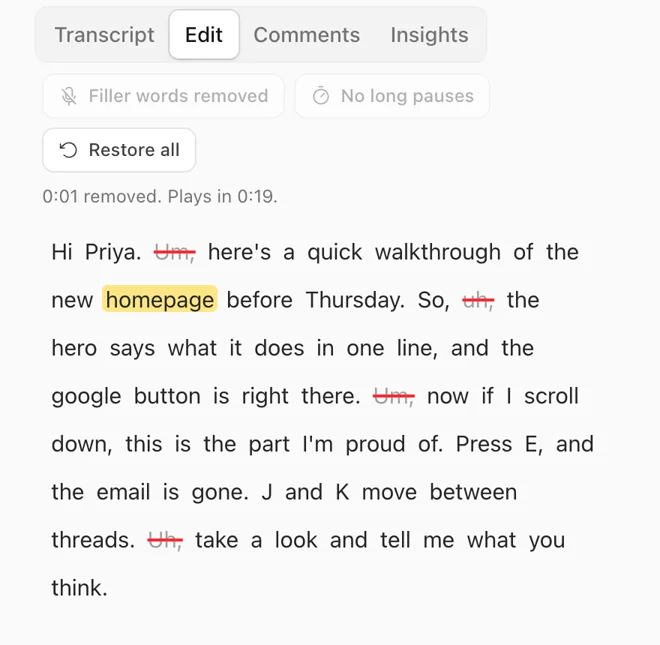
- Open Edit, which appears once the recording has a transcript. Select words and cut them; you can restore them later. One button removes filler words such as um and uh, and another shortens long pauses. Trim the ends in Customize.
- Add text, boxes or arrows to point at the right control, and a clickable link to the next video or document.
Record your first training video.
Start recording freeOnboarding, support and internal knowledge
Onboarding: a short series, one video per task, in the order a new person needs them. Support: record the answer to a question the second time it is asked, and link it from the reply. Internal knowledge: record a process while the person who knows it is still around, and add the transcript to the document that describes it.
Written SOPs and summaries made from a transcript are a paid-plan feature. Check the result before you rely on it.
Recording checklist
- One objective, written down.
- Test account and sample data, no real customer details.
- Notifications off, browser zoom readable.
- Microphone checked: speak and watch the level bars.
- Steps said aloud before they are clicked.
- Filler words and long pauses removed.
- Title names the task.
- Visibility set on purpose.
A sample storyboard
Fictional company and sample data. Objective: after this video, a new support agent can issue a refund.
- Say the objective and what the agent needs open: the helpdesk and the billing tool.
- Find the customer's ticket and read the refund reason.
- Open the order in the billing tool and choose Refund.
- Pick the amount, explain the one field that people get wrong, and confirm.
- Go back to the ticket, paste the standard reply, and close it. Finish with where the next video is.
What it does not do
- Vertov has no quizzes, course structure, certificates or completion tracking, and it does not replace a learning management system.
- Vertov has no tool that starts a recording, and agents do not generate training videos for you. They can upload a video file or link and read transcripts through the API and MCP server.
- On the Free plan, a video that nobody else has watched for 90 days is flagged and eventually removed after warnings, so keep or download anything you need.
- Vertov is a newer product, and its plans and limits may change.
Rather record from a toolbar button? Use the Vertov Chrome extension.
Questions
- How do I make a training video?
- Choose one objective, plan the steps, record your screen while you do the task and explain it, tidy the recording by editing the transcript, then share the link.
- What software do I need to make training videos?
- A screen recorder is enough for software training. Vertov records in the browser, gives you a share link, and lets you edit by deleting words from the transcript.
- How long should a training video be?
- There is no fixed length. Our guideline is one objective per video, as short as it takes. Split a long process into a series.
- Can I make employee onboarding videos this way?
- Yes, for the software and process parts. Record one video per task in the order a new person needs them, and put them in a shared space.
- Does it track who finished a video?
- No. Vertov shows opens counted once per browser and the furthest point each browser reached. Skipping ahead counts, so this is not completion tracking.
Record your first video.
No download needed and no card.