How to Download Loom Videos When the Download Button Is Missing
If Loom’s Download button is missing, check your plan, role and workspace settings first. If Loom lets you export, save the MP4 directly. For a recording you’re allowed to copy, you can also import it into Vertov, then save the imported file or share it from your library.
Download the MP4 from Loom when you’re eligible
- Open your recording in Loom’s Library.
- Open the three-dot menu above the player and select Download.
- Open the MP4 in your Downloads folder and check that the video and sound play.
If Loom says it’s still processing, wait and try again. Atlassian’s download troubleshooting guide recommends contacting support if the file still isn’t ready after 30 minutes.
Import a public Loom link into Vertov
- Open Vertov’s Loom importer and paste the public share link to your recording.
- Scan the link, select the video and choose Import.
- Wait for the copy to finish in My videos. Open it and check playback.
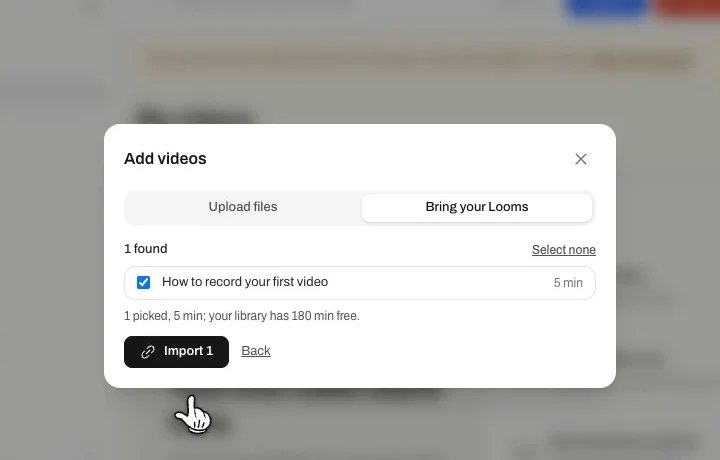
The web importer accepts up to 50 public links per batch. Vertov Free includes 180 minutes of stored video per workspace and a standard 15-minute cap for new recordings. Imports have separate file and processing limits and need room in your library. Try one important video before moving the rest.
Import an eligible private Loom in Chrome
- Install Vertov’s Chrome extension and connect it to your Vertov workspace.
- In the same Chrome profile, sign in to Loom and open the recording you have permission to copy. In Vertov’s extension, open Bring your Looms and choose Copy this Loom.
- To choose several, use Find my Looms, tick the videos and choose Copy. The extension handles up to 100 per run.
- When the copy is ready, open it in Vertov. Keep your original Loom visibility settings in place.
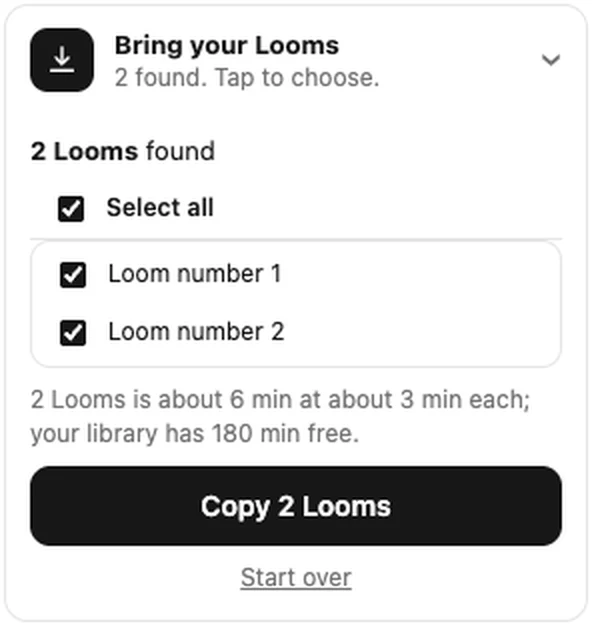
Use the extension for videos you’re authorized to copy. Where an administrator has restricted exports or the recording is unavailable to you in Loom, ask the workspace admin or owner for an approved copy.
Save the imported MP4 or share the hosted copy
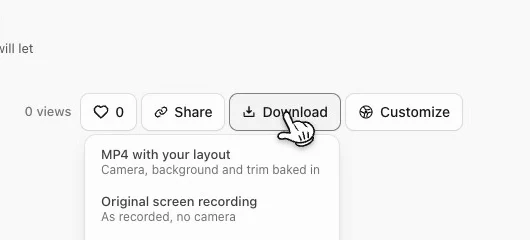
For a file you can keep, open the ready copy in My videos, choose Download below the player, then choose Original screen recording. This downloads the imported media file. When the importer converts a compatible stream into an MP4, that converted file is the copy you save.
For a hosted copy, open the imported recording, choose the appropriate access setting, then use Share → Copy link. Sign in to share a copy imported as a guest. Test the new link with the kind of viewer it’s meant for, then replace the old link wherever you used it.
If you already have a Loom MP4, you can upload that file to Vertov. To decide where to host the rest of your library, compare Vertov and Loom or see other Loom alternatives.
Put the MP4 on WordPress or another host
In WordPress, add a Video block, choose Upload and select your MP4. If your site can’t accept the file size, upload it to a video host and embed the new video URL instead. Preview the page on mobile and check the sound and caption track.
Check the copy before you cancel Loom
- Keep a local MP4 backup of anything you can’t recreate. Play through the beginning and end, and check audio.
- Save any original captions or transcripts you can export separately. A copied video doesn’t carry over Loom comments, reactions, viewer analytics, permissions or chapter metadata. Vertov can generate a new transcript for eligible imports.
- Update old embeds and links in documentation, client handoffs and WordPress. Check new links and permissions from a viewer’s account before closing the old workspace.
Sources
Questions
- Can I download my Loom video without a subscription?
- Loom’s native Download button is unavailable on Starter and for Creator Lite roles. If you’re authorized to keep a copy, ask the owner or admin to export it, or try importing an eligible recording into Vertov and saving the imported file.
- Does importing into Vertov delete the original Loom?
- No. The import creates a separate copy. Check it before deleting the original.
- Can I move a private Loom without making it public?
- Use the Chrome extension while signed in to the Loom account that is authorized to access and copy the recording. Keep your existing Loom sharing settings.